Published: November 26, 2026 | By Vito Ruocco
Anthropic has just turned Claude’s artifacts into real desktop apps. An artifact used to be a page that lived next to the chat. Now there is a button called Install as app, and that page becomes a program on your Mac or Windows computer, with its own icon, its own window and its own notifications. I wanted to see what that means in practice, so I started from a completely clean Windows PC, downloaded Claude, typed one prompt and installed the result as an app. It took about three minutes for Claude to build it and one click to install it. Below is everything I saw, the one permission you should never give to an app you did not build yourself, and the business reason every big AI company now wants your work to live inside its own app.
The app I built is called VitoMind Mission Control. It has a rotating 3D globe with the cities where the big AI labs work, a news radar that saves my stories between sessions, a leaderboard of what each AI model has cost me in my own tests, a box where I can ask Claude questions about all of it, and a button that reminds me when it is time to record. I did not write a single line of code. Every click in this article was recorded inside a clean Windows Sandbox, so you can follow the same steps on your own machine.
The Short Version
- What is new: on November 24, 2026 Anthropic released Install as app, a beta feature that turns a Claude artifact into a Mac or Windows desktop app. It is rolling out on every plan, the free plan included, and needs Claude Desktop version 6.28899.0 or later.
- How it works: open an artifact, click its name, choose Install as app, confirm. The app gets its own icon and window, and it updates itself whenever the artifact changes. To open it you have to be online and signed in to Claude.
- The limits: no Linux, no web and no phones for now. Artifacts made from a template, such as Docs, Slides or Sheets, cannot be installed.
- The permissions: by default an installed app can only do what a web page can do. It can ask for app permissions (notifications, global shortcuts, always on top, a tray icon) and, at the top, for full access to your computer, which lets it run programs and read, change or delete your files without asking each time. Anthropic says it does not review apps before you install them.
- My test: Claude Opus 5.5 on medium effort, Claude Pro plan, one prompt. The build took 3 minutes and 9 seconds. The app installed, asked for notification and Claude permissions separately, sent a real Windows notification, answered questions through Claude, and reopened from its desktop icon with my data still there.
- The catch: artifacts live on Anthropic’s servers and the people you share them with need a Claude account. There is an exit door, though: every artifact can be exported. My app came out as a single 34 KB HTML file.
What Anthropic Released
On November 24, 2026 Anthropic published a page called “Turn artifacts into Mac and Windows apps”. The first lines say it plainly: starting today you can use Claude artifacts to create, run and share desktop apps, and the Install as app feature is rolling out in beta in Claude for Mac and Windows. When an artifact is installed it gets its own icon and opens in its own window instead of inside Claude.
The Claude Help Center has a full page on it, “Install an artifact as an app”. It lists the plans (Free, Pro, Max, Ultra, Team and Enterprise) and the version you need: Claude for Mac or Claude for Windows 6.28899.0 or later. When I installed Claude in my clean Sandbox from claude.com/download, the version I got was 6.28899.6, so the button was already there.
The press picked it up within hours. MacRumors, eWeek and Notebookcheck all covered it on November 25. The details matched what the Help Center says, which is always a good sign with a launch that is still rolling out.
The limits worth knowing
The Help Center has a “Current limitations” section, and it is worth reading before you plan anything around this feature:
- Platforms: apps are not available on Linux, on the web or on mobile. This is a Mac and Windows feature for now.
- Templates: artifacts made from a template, such as Docs, Slides or Sheets, cannot be installed. Neither can legacy artifacts or live artifacts from Claude Cowork.
- Online and signed in: to open an installed app you need to be online and signed in to Claude Desktop. This is not an offline program you can carry around; it is a window onto an artifact that still lives in your Claude account.
- HIPAA: organizations with HIPAA-ready configurations do not get the feature.
There is one more line I find important for anyone who will actually use this: building an app, and every request the app sends to Claude, counts toward your plan’s usage limits.
What Artifacts Can Do Now
If you have not touched artifacts in a while, they changed a lot this autumn. Anthropic’s own definition is simple: an artifact is anything Claude makes for you that you would put in front of someone. A design, a deck, a document, a dashboard, or a small interactive tool. It lives at its own link, and every artifact starts private, visible only to you until you share it.
There are now seven templates: Docs, Slides, Design, Dashboards, Sheets, Whiteboards and Motion, the last one for short animated explainers. Dashboards and Motion arrived on October 8. Anthropic also says people have already made more than 45 million documents, decks and designs with artifacts, which tells you this is not a side feature any more.
What makes an artifact more than a static page comes down to three abilities:
- It can save data. Storage can be personal (everyone keeps their own private data) or shared (everyone sees and works with the same data). A tracker or a sign-up sheet shows the same list to everyone.
- It can use your connectors. An artifact can read and write the apps you have connected to Claude, like your calendar or Slack.
- It can call Claude. The page itself can answer questions or give feedback. When someone else uses a page you built, those calls count against their plan, not yours.
Install as app adds a fourth: the same page can now live on your desktop like any other program.
The Permission You Should Never Give
This is the part nobody should skip. An installed app has three levels of permission, and the difference between them is huge.
Level one: default
By default an installed app can only do what a web page can do in a browser. It can draw on screen, save data through Claude’s storage and call Claude if you allow it, but it cannot touch your files or your other programs.
Level two: app permissions
An app can ask for extra powers that make it feel like a real program: showing notifications while you use other apps, responding to key combinations anywhere on your computer, floating over other windows, and adding an item to the macOS menu bar or the Windows system tray. You answer each request with Allow or Don’t allow.
Level three: full access to this computer
At the top there is full access. In Anthropic’s own words, it lets an app run programs and read, change or delete your files without asking each time. And the Help Center adds the sentence I think everyone should remember: Anthropic does not review apps before you install them. Their advice is to allow full access only if you trust everyone who wrote the app.
So my rule is easy. Full access only for apps you built yourself, or that come from someone you really trust. There are some guard rails. On Team plans the feature is on, but full access stays off until an admin turns it on. On Enterprise plans the whole feature is off until an owner enables it. And on the personal plans, Claude generally does not let an app ask for full access if someone outside your organization wrote it. On top of that, an “Allow” covers one version of the app: every time the artifact changes, the app asks for its permissions again.
What This Actually Replaces
Every time an AI company ships something, someone says it just killed a thousand startups. It did not. This will not replace Excel or your CRM. Anthropic itself says Sheets only has simple spreadsheet functionality for now. If you need real logins, a real back end and proper user roles, you still build and host a real application.
What it does replace is the small software. The hiring tracker, the onboarding checklist, the training quiz, the weekly numbers page. The things a team either pays a subscription for, keeps in a messy spreadsheet, or never builds at all. Until now each of those could become a prompt and a link. From today it can be a prompt and an icon on your desktop.
How to brief an artifact
The difference between an artifact nobody opens and one you use every day is the brief. I write it the way I would brief a person:
- Who it is for. In my case: a YouTuber who checks the AI news every morning before recording.
- What decision it helps make. Which story to lead with today.
- What good looks like. Over the top on purpose: deep space, neon yellow and electric blue, glass panels, smooth animations.
- The real numbers. I gave it the exact costs from my own tests, so the leaderboard shows facts and not placeholders.
The Catch: Where Your Work Lives
There is also a business side to this. Your artifacts live on Anthropic’s servers, and the people you share them with have to sign in to Claude to see them. That is on purpose, and Anthropic is not the only one doing it. OpenAI launched ChatGPT Spaces at the end of September. Microsoft has Copilot Pages. Google has Canvas in Gemini. Every big AI company is building the place where your work lives, because the model alone may not be enough to keep you.
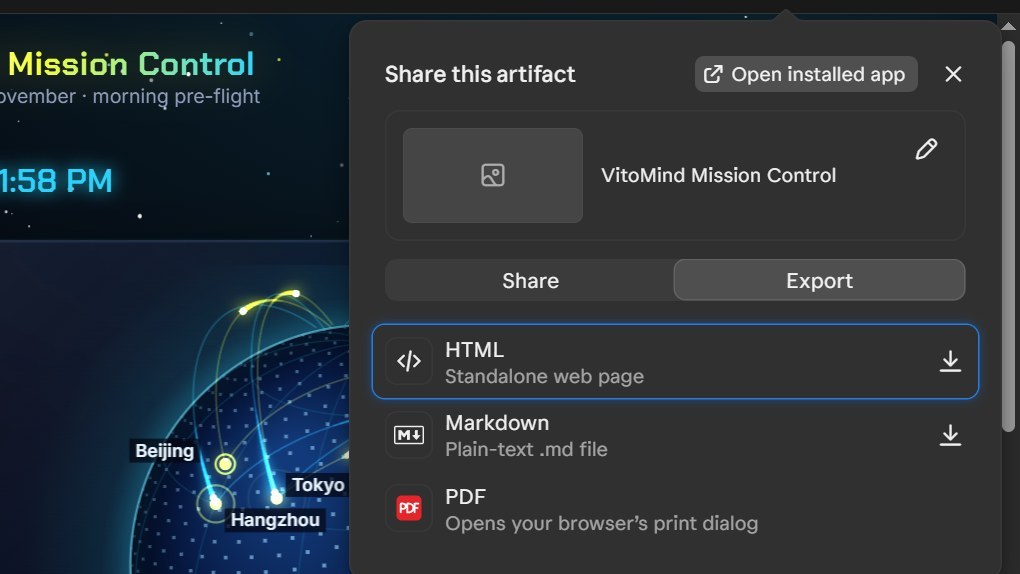
The good news is that there is an exit door. Every artifact has an Export menu. The templates export to Word, PDF, Google Docs and PowerPoint, and my app came out as a single HTML file that opens in any browser, plus Markdown and PDF options. So my rule is simple: keep the source of truth in places you own, your files, folders and databases, and use the artifact as the window your team looks through.
The Live Build, Step by Step
Here is exactly what I did, on a clean Windows Sandbox with nothing installed.
1. Download and install Claude
I opened the browser, went to claude.com/download and clicked Download for Windows. One file, Claude Setup. I opened it and it installed itself in about a minute. I signed in, set the interface to English, and picked Claude Opus 5.5 with effort on medium. I am on the 20 dollar Pro plan, and I chose medium on purpose: higher effort settings can burn through the plan’s limits quickly on a big build.
2. One prompt
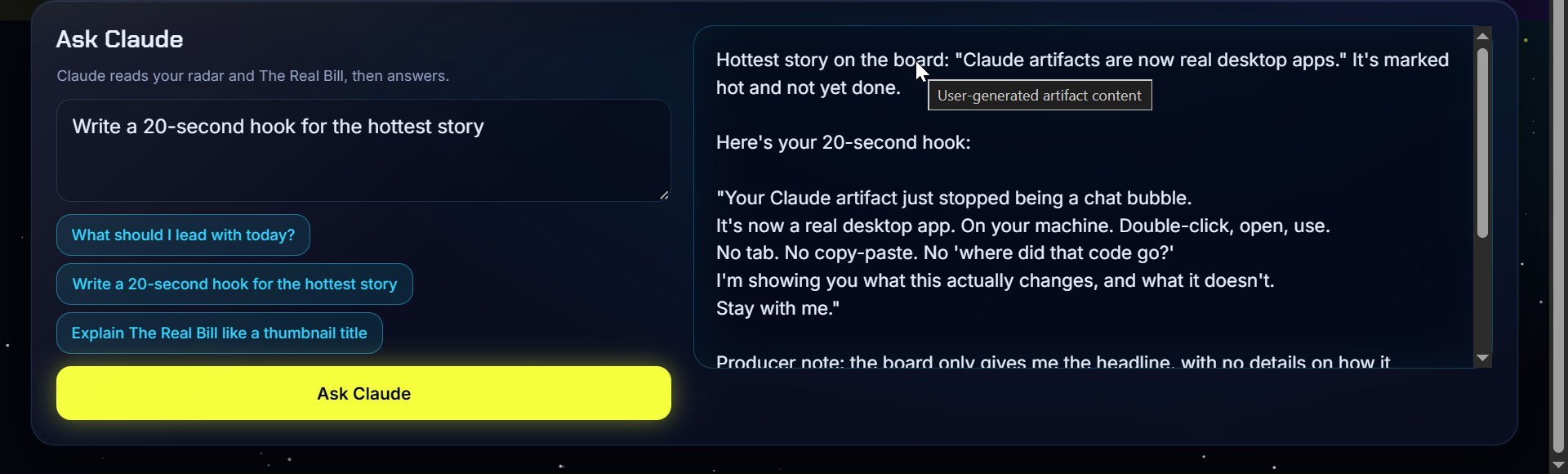
This was the whole brief, typed once into a new chat: an app called VitoMind Mission Control, over the top on purpose, with a rotating 3D globe showing San Francisco, Seattle, London, Paris, Beijing, Hangzhou and Tokyo with light arcs flying between them; an AI news radar on the left where I can add a story, mark it hot, warm or cold and tick it done, saved for the next time I open the app; on the right, “The Real Bill”, a leaderboard with animated bars of what each model cost me on the same six coding prompts in my earlier videos; an Ask Claude box at the bottom; and a Remind me to record button that sends a desktop notification after the minutes I choose. The exact wording is in the Ruocco Academy.
3. Claude builds it
The first thing Claude did was check what an artifact is allowed to do: save data, call Claude, send notifications. Then it wrote one HTML file of about 34 kilobytes. The whole thing took 3 minutes and 9 seconds, and the artifact opened next to the chat.
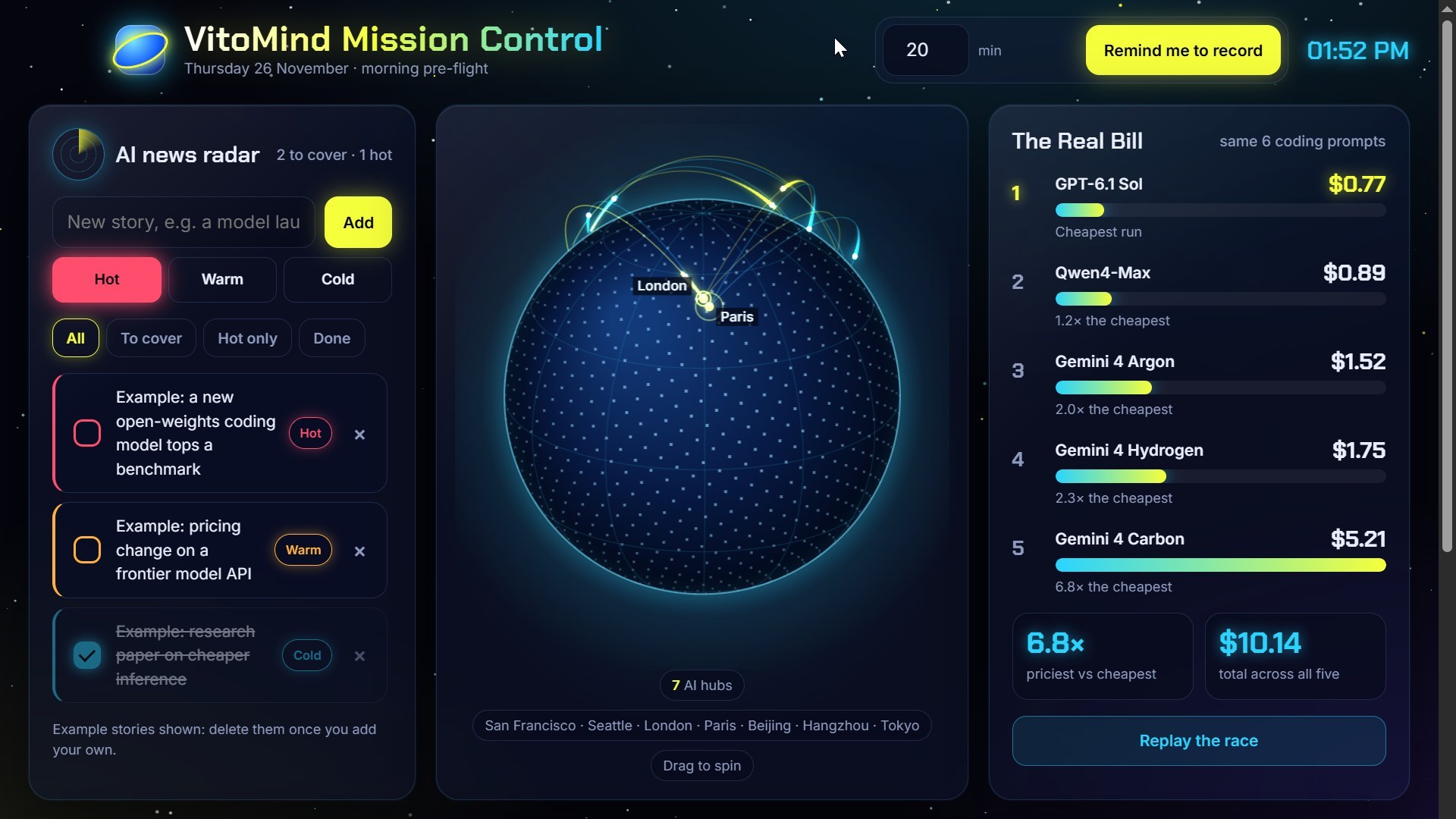
The globe spins, with light arcs flying between the cities. The news radar is on the left and The Real Bill is on the right: GPT-6.1 Sol at $0.77, Qwen4-Max at $0.89, Gemini 4 Argon at $1.52, Gemini 4 Hydrogen at $1.75 and Gemini 4 Carbon at $5.21, with “6.8x priciest vs cheapest” and the total underneath. Those are the real costs from my own tests on the same six prompts. At the bottom there is a panel to ask Claude.
4. Install as app
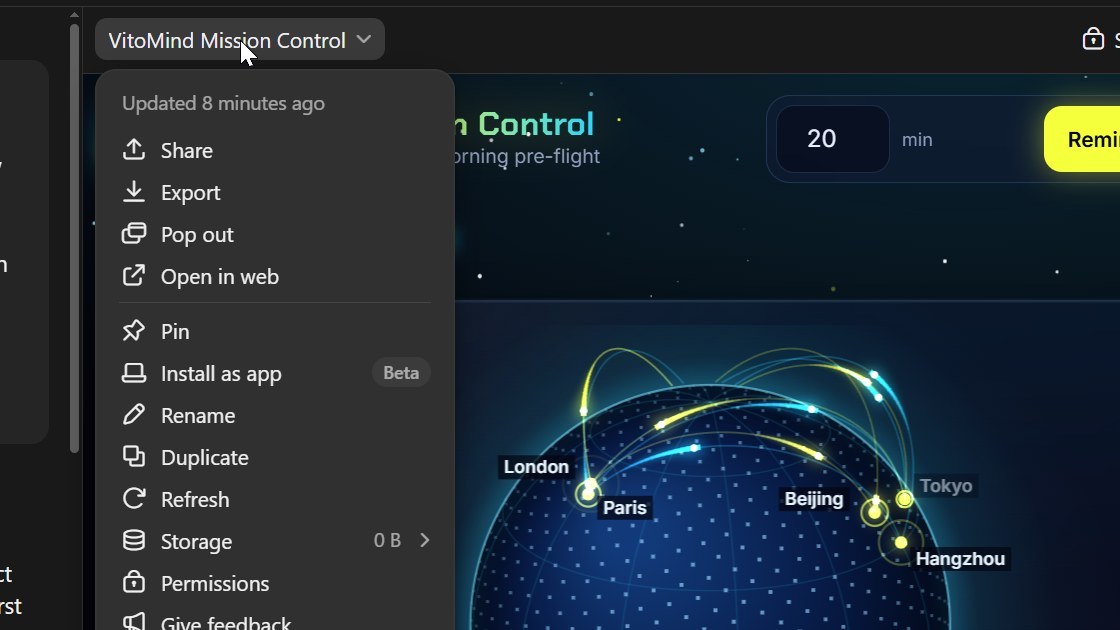
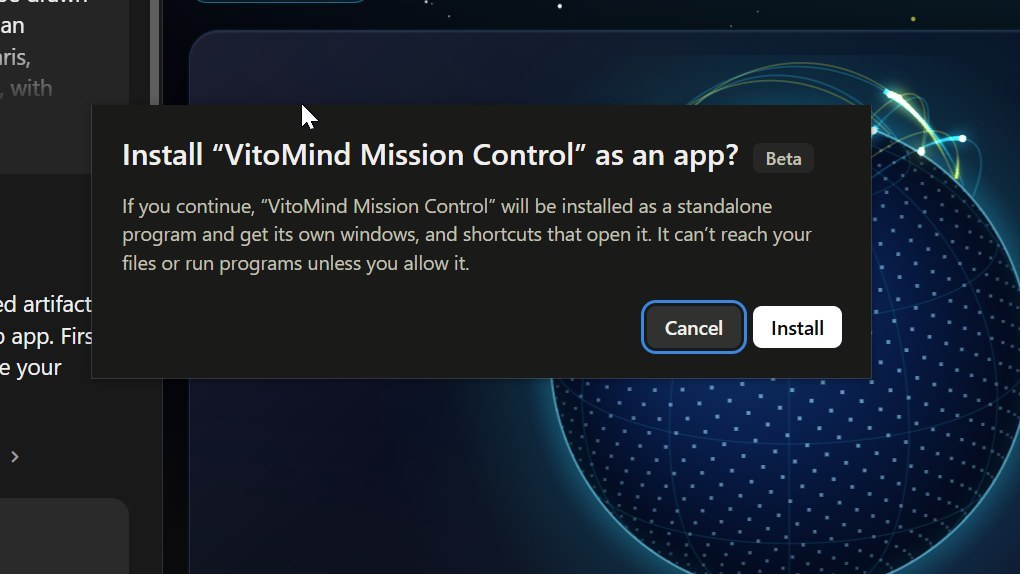
I clicked the name of the artifact and there it was: Install as app, marked Beta. Claude asked for confirmation, and the dialog was very clear: the app will be installed as a standalone program with its own windows and shortcuts, and it cannot reach your files or run programs unless you allow it. I clicked Install. The confirmation said “Installed. Open it from the Start menu or your desktop”, and the app opened in its own window with its own globe icon in the Windows taskbar.
5. Using it like a real program
I added today’s story, “Claude artifacts are now real desktop apps”, and marked it hot. The app answered “saved to your account”. I spun the globe with the mouse and replayed the cost race.
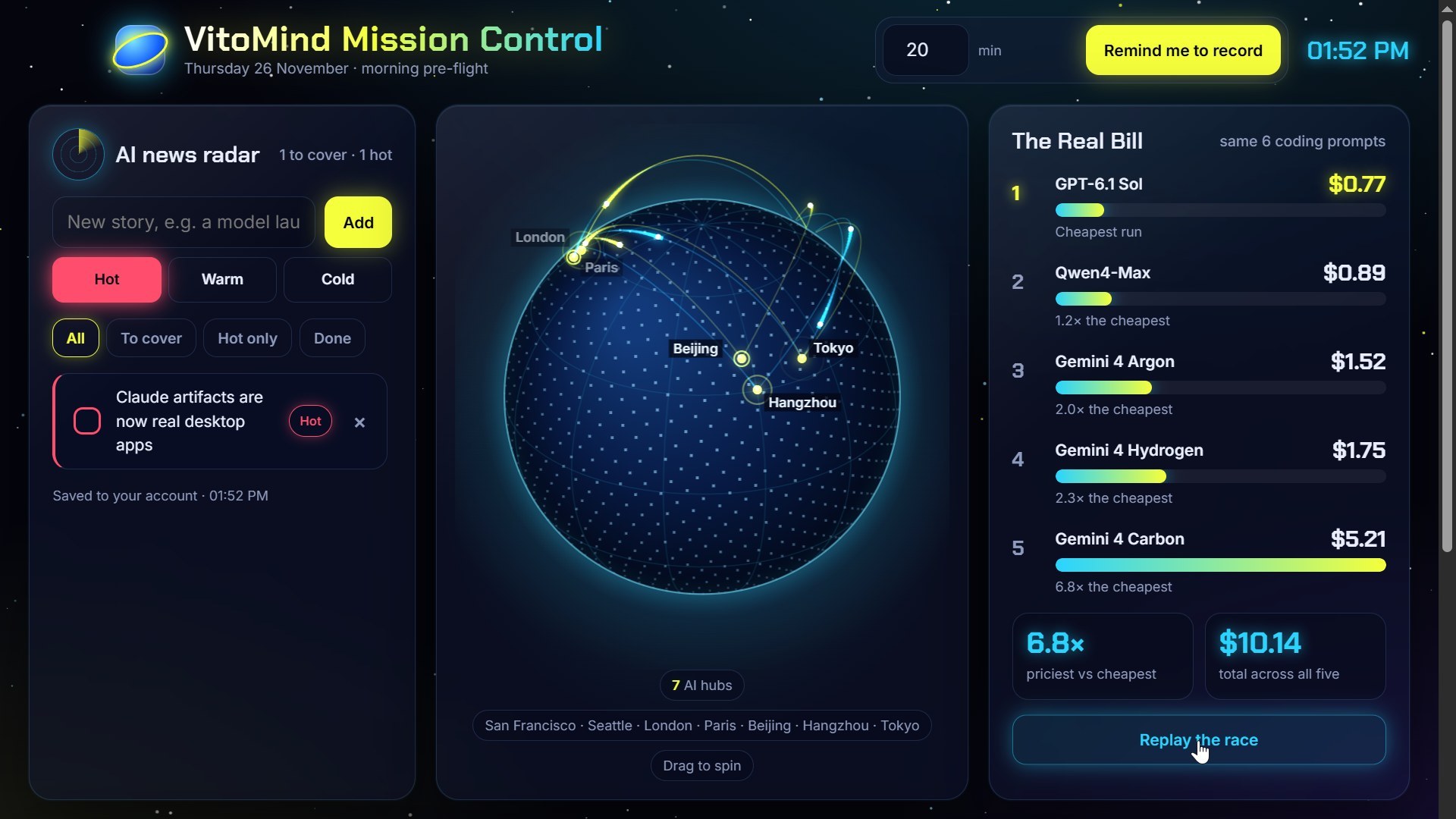
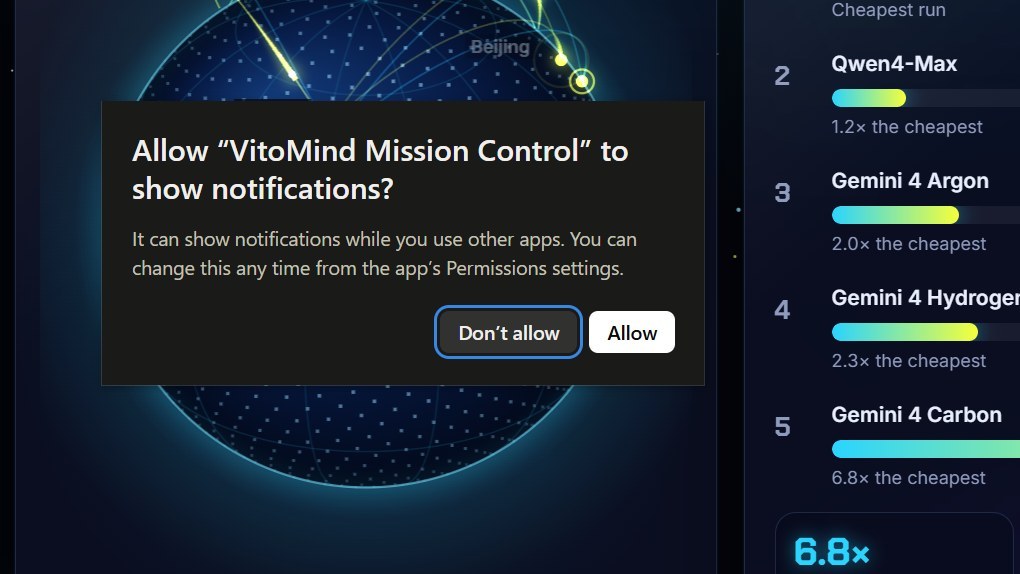
Then the reminder. I set one minute and clicked the button, and the permission system kicked in: the app asked whether it may show notifications while I use other apps. I allowed it, and a countdown started.
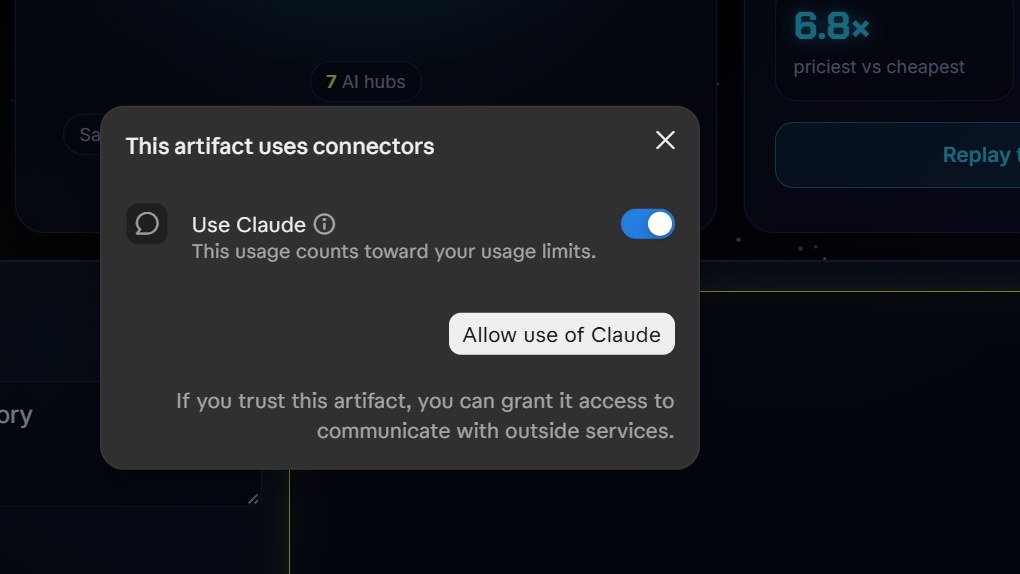
Then I asked Claude for a twenty-second hook about the hottest story. Another permission request appeared: this artifact uses connectors, “Use Claude”, and this usage counts toward your usage limits. Right then the reminder fired as a real Windows notification: “Time to record your VitoMind video. Your radar is ready.” I allowed Claude, and a few seconds later it had read my board and written the hook.
6. The last test
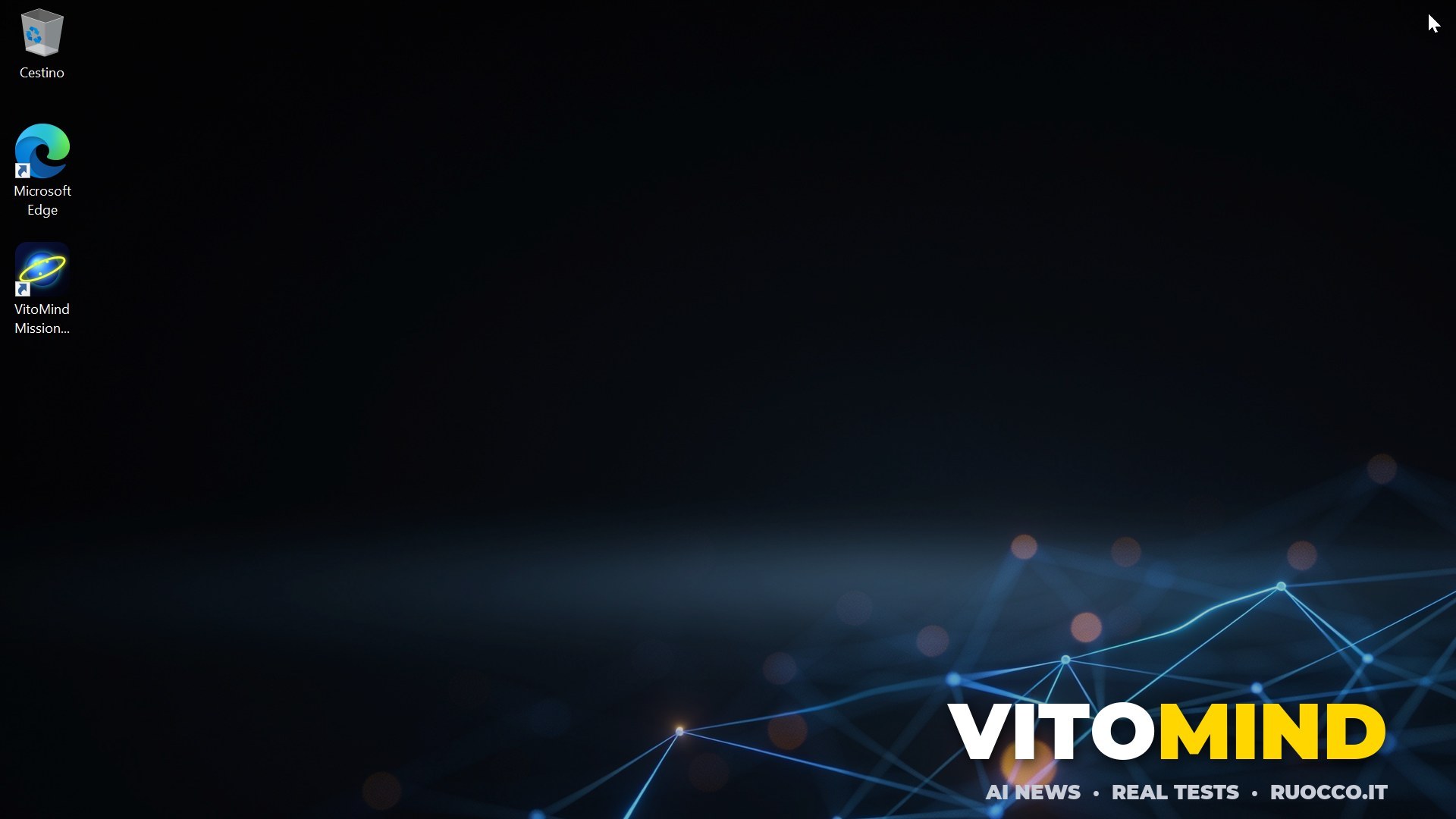
I closed the app and went back to the desktop. There was a new icon, right under Edge. Double click, and it opened again with my story still there: “Synced with your account”.
My Verdict
Is this a huge upgrade? For the small tools you use every day, yes. One prompt, one click, and it lives on your desktop, on a 20 dollar plan. It saved data, sent real notifications, used Claude inside the app and survived a restart. The permission prompts were clear and appeared exactly when they should.
Two things to keep in mind. First, it is a beta, it needs an internet connection and a Claude login to open, and it is not on Linux, the web or phones yet. Second, the one rule: never give full access to an app you did not build. Default and app permissions are enough for almost everything a small tool needs.
Try the App, and Get the Prompt
The exact file Claude exported is on my site, and you can use it in your browser right now: VitoMind Mission Control on ruocco.it. Outside Claude the news radar is saved on your own device, while Ask Claude and the desktop notification need Claude itself. Every other build from my videos is in the AI demos gallery.
The exact prompt, the exported file and the Windows Sandbox kit I used to record a clean tutorial without touching my own desktop are in the Ruocco Academy. The Academy is a waiting list right now: join it and you get one email when it opens.
How I Tested
- Claude for Windows 6.28899.6, downloaded from claude.com/download into a clean Windows Sandbox on November 26, 2026.
- Model: Claude Opus 5.5, effort medium, on the Claude Pro plan. One prompt, no edits to the code. Build time 3 minutes 9 seconds.
- The cost figures in The Real Bill come from my earlier tests on the same six coding prompts, at API list prices.
- Install as app is a beta that is still rolling out, so menus and wording may change.
Sources
- Anthropic: Turn artifacts into Mac and Windows apps
- Claude Help Center: Install an artifact as an app
- Claude Help Center: What are artifacts and how do I use them?
- eWeek: Claude can now turn artifacts into Mac and Windows apps
- MacRumors: Claude now lets you install artifacts as desktop apps
- Notebookcheck: what full access lets Claude apps do
- Magica: Anthropic brings dashboards and coded animation into Claude
- TechRadar: OpenAI launches ChatGPT Spaces
- Microsoft Support: Get started with Copilot Pages
- Google: Gemini Canvas
A note on honesty: the 45 million figure and the October 8 date for Dashboards and Motion are Anthropic’s numbers as reported by the press, not something I measured. Everything about the build, the install and the permissions is what I recorded myself.
If you like real tests like this one, subscribe to @VitoMind on YouTube: every week I put the newest AI models and tools through real builds, and I show you the bill.